1
Power it on
Plug in your Weather100 or switch it on. The e-paper screen may take a few seconds to refresh. That is normal.
Weather100 is a connected e-paper display that shows how unusual your local weather is compared with history. Follow the steps below to connect Wi-Fi, understand the buttons, and read the screens.
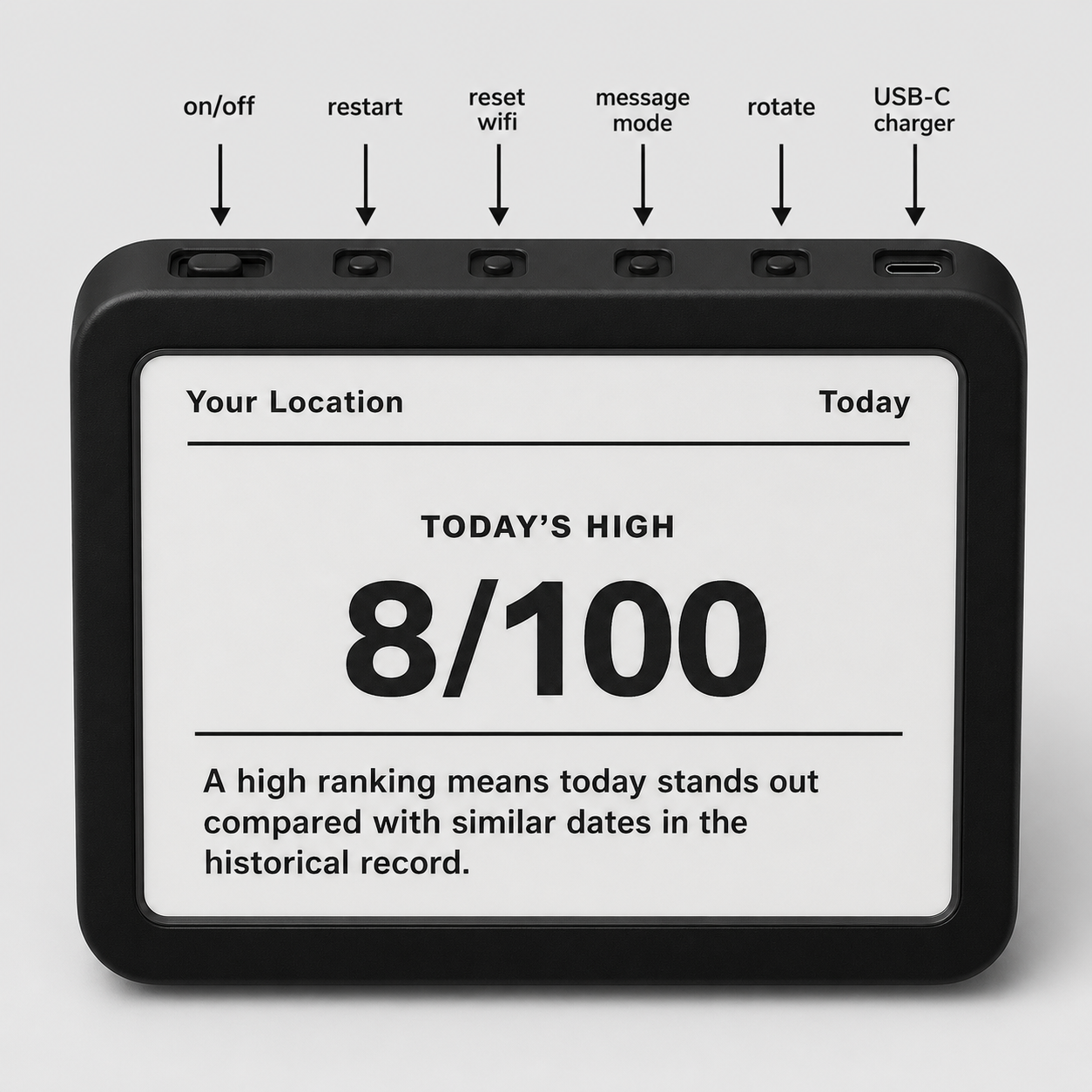
Use your phone or computer for setup. Keep the device close to your Wi-Fi router the first time you connect it.
Plug in your Weather100 or switch it on. The e-paper screen may take a few seconds to refresh. That is normal.
If the setup screen appears, connect your phone or computer to the Weather100 setup Wi-Fi shown on the device, then follow the on-screen instructions.
Once connected, the device downloads today’s weather ranking messages. After that, it updates automatically each day.
Download the free iOS or Andriod app (not required for setup), to see rankigns on your phone and/or any other location globally.
Button labels may vary slightly by model, but the functions are the same: detail, setup/reset, and rotate.
E-paper screens refresh in flashes. That is expected and helps the display use very little power.
The device is waiting for Wi-Fi details. Connect your phone or computer to the setup network shown on the screen and complete the setup page.
Weather100 is connecting to the internet and downloading today’s local ranking messages. Leave it powered on until the weather screen appears.
This is the normal display. It shows a weather metric, a rank out of 100, and a short explanation of what makes today stand out.
The device is showing when it plans to fetch the next set of messages. Weather100 normally updates automatically each morning.
Charge the device soon. The screen can keep showing the last image even when the battery is low, so charge it if the content stops updating.
The device could not download new data. Check Wi-Fi, move the device closer to the router, then restart it or run setup again if needed.
The data update service is not active for this device. Visit Weather100.com or contact support with your device ID.
The device is in low-power shipping mode. Unplug and reconnect power without holding any buttons to start it normally.
Weather100 is not just showing the weather. It is showing where today fits compared with history for your location and time of year.
A rank near the top means the weather is unusually strong for that metric. The exact meaning depends on whether the screen is showing heat, cold, rain, or another condition.
A low number usually means the day is closer to the hottest end of the historical range for this date or period.
A low number usually means the day is closer to the coldest end of the historical range for this date or period.
A low number usually means the period is closer to the wettest end of the historical range. A high number means it is closer to the driest end.
Weather100 is designed to sit quietly in the background. These simple checks solve most issues.
If updates fail, move the device closer to your router and restart it. Weak Wi-Fi is the most common cause of missed updates.
E-paper screens flash while refreshing. This is normal and helps prevent ghosting on the display.
The screen may still show an old message when the battery is low. Charge it if the low battery icon appears or updates stop.
Include your order email and device ID if possible. The device ID helps us find the exact Weather100 unit connected to your account.